Matrix Mac 1
Homebrew package manager
Installed using the script on the official website.
/bin/bash -c "$(curl -fsSL https://raw.githubusercontent.com/Homebrew/install/HEAD/install.sh)"
Add homebrew's bin dir to path
sudo sh -c 'echo "/opt/homebrew/bin" >> /etc/paths.d/homebrew'
Wireguard
Installation
Initially wireguard was installed through the AppStore but that can't be configured to connect on boot.
Instead, wireguard is installed with homebrew.
ning@matrix-mac-1 ~ % brew install --build-from-source wireguard-tools

# the --build-from-source was needed because
ning@matrix-mac-1 ~ % brew search wireguard
==> Formulae
wireguard-go                             wireguard-tools
ning@matrix-mac-1 ~ % brew install wireguard-tools
Error: wireguard-tools: no bottle available!
You can try to install from source with e.g.
  brew install --build-from-source wireguard-tools
Please note building from source is unsupported. You will encounter build
failures with some formulae. If you experience any issues please create pull
requests instead of asking for help on Homebrew's GitHub, Twitter or any other
official channels.
bash dependency
wg-quick requires bash 4 or newer. Mac comes with bash 3 at /bin/bash. homebrew installed bash is symlink'd to /usr/local/bin/bash so that the newer bash is the first one on PATH.
Configuration
Wireguard configuration for the vpn is stored at /usr/local/etc/wireguard/relay-vpn.conf
Apply the configuration using
ning@matrix-mac-1 ~ % wg-quick up relay-vpn
Warning: `/usr/local/etc/wireguard/relay-vpn.conf' is world accessible
[#] wireguard-go utun
INFO: (utun2) 2020/12/30 05:58:50 Starting wireguard-go version 0.0.20201118
[+] Interface for relay-vpn is utun2
[#] wg setconf utun2 /dev/fd/63
[#] ifconfig utun2 inet6 fc00:2222:2222::1/128 alias
[#] ifconfig utun2 up
[#] route -q -n add -inet6 fc00::/16 -interface utun2
[+] Backgrounding route monitor
Configure wireguard to launch on boot
Create plist file /Library/LaunchDaemons/matrix.relay-vpn.plist
<?xml version="1.0" encoding="UTF-8"?>
<!DOCTYPE plist PUBLIC "-//Apple//DTD PLIST 1.0//EN" "http://www.apple.com/DTDs/PropertyList-1.0.dtd">
<plist version="1.0">
    <dict>
        <key>Label</key>
        <string>matrix.relay-vpn</string>
        <key>ProgramArguments</key>
        <array>
            <string>/opt/homebrew/bin/wg-quick</string>
            <string>up</string>
            <string>/usr/local/etc/wireguard/relay-vpn.conf</string>
        </array>
        <key>KeepAlive</key>
        <true/>
        <key>RunAtLoad</key>
        <true/>
        <key>LaunchOnlyOnce</key>
        <true/>
        <key>StandardErrorPath</key>
        <string>/usr/local/var/log/relay-vpn.err</string>
        <key>EnvironmentVariables</key>
        <dict>
            <key>PATH</key>
            <string>/usr/local/sbin:/usr/local/bin:/usr/bin:/bin:/usr/sbin:/sbin</string>
        </dict>
    </dict>
</plist>
Inform launchd of the new plist
ning@matrix-mac-1 LaunchDaemons % sudo launchctl enable system/matrix.relay-vpn
ning@matrix-mac-1 LaunchDaemons % sudo launchctl bootstrap system /Library/LaunchDaemons/matrix.relay-vpn.plist
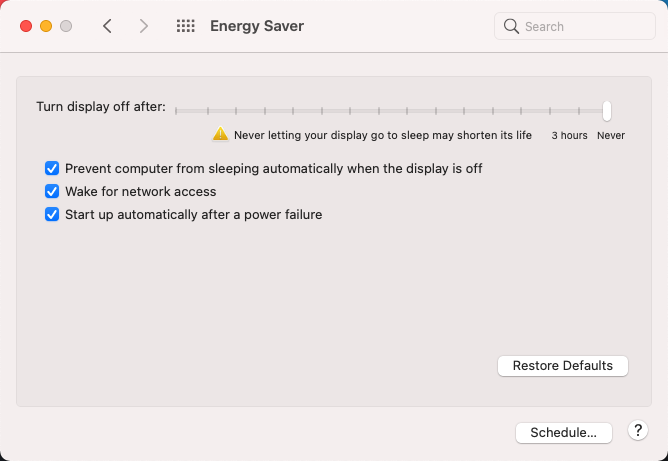
Turn off automatic sleeping
To maintain connectivity, the Mac must not sleep!
Configured via GUI System Preferences > Energy Saver
SSH Server Configuration
Sets the following configuration in /etc/ssh/sshd_config
PermitRootLogin no
ChallengeResponseAuthentication no
PasswordAuthentication no
Firewall Configuration
Allow all incoming traffic from relay vpn and localhost. Disallow all incoming traffic from other interfaces on all ports except wireguard port (udp 48914)
Configuration
ning@matrix-mac-1 ~ % cat /etc/pf.anchors/matrix.firewall
block all
pass in on en0 proto udp from any to any port 48914
pass in from fc00::/16 to fc00:2222:2222::1
pass out
ning@matrix-mac-1 ~ % cat /etc/pf.conf
#
# Default PF configuration file.
#
# This file contains the main ruleset, which gets automatically loaded
# at startup.  PF will not be automatically enabled, however.  Instead,
# each component which utilizes PF is responsible for enabling and disabling
# PF via -E and -X as documented in pfctl(8).  That will ensure that PF
# is disabled only when the last enable reference is released.
#
# Care must be taken to ensure that the main ruleset does not get flushed,
# as the nested anchors rely on the anchor point defined here. In addition,
# to the anchors loaded by this file, some system services would dynamically
# insert anchors into the main ruleset. These anchors will be added only when
# the system service is used and would removed on termination of the service.
#
# See pf.conf(5) for syntax.
#
#
# com.apple anchor point
#
scrub-anchor "com.apple/*"
nat-anchor "com.apple/*"
rdr-anchor "com.apple/*"
dummynet-anchor "com.apple/*"
anchor "com.apple/*"
anchor "matrix.firewall"
load anchor "com.apple" from "/etc/pf.anchors/com.apple"
load anchor "matrix.firewall" from "/etc/pf.anchors/matrix.firewall"
ning@matrix-mac-1 ~ %
Apply on startup
Modification of system plist file for PF /System/Library/LaunchDaemons/com.apple.pfctl.plist requires disabling System Integrity Protection (SIP).
Instead, a separate plist file is created and registered similar to the wireugard plist file.
<?xml version="1.0" encoding="UTF-8"?>
<!DOCTYPE plist PUBLIC "-//Apple//DTD PLIST 1.0//EN" "http://www.apple.com/DTDs/PropertyList-1.0.dtd">
<plist version="1.0">
    <dict>
        <key>Label</key>
        <string>matrix.firewall</string>
	<key>WorkingDirectory</key>
	<string>/var/run</string>
        <key>ProgramArguments</key>
        <array>
            <string>/sbin/pfctl</string>
            <string>-e</string>
            <string>-f</string>
            <string>/etc/pf.conf</string>
        </array>
        <key>RunAtLoad</key>
        <true/>
    </dict>
</plist>
ning@matrix-mac-1 ~ % sudo launchctl enable system/matrix.firewall
ning@matrix-mac-1 ~ % sudo launchctl bootstrap system /Library/LaunchDaemons/matrix.firewall.plist
References
- https://apple.stackexchange.com/a/230558
- https://unix.stackexchange.com/questions/157809/pf-blocks-all-in-out-traffic-instead-of-just-the-one-port-i-wanted-to-block
man pf.confman pfctl
Connect to the Mac
Join relay wireguard vpn as described in the previous comment. Ensure there is a user account for the operator on the Mac.
SSH
Add operator's ssh public key into ~/.ssh/authorized_host. Create the file if it doesn't exist. This requires either physical access or ssh access or vnc access to the Mac to copy the key in.
Connect with ssh using public key authentication ssh -i <operator_ssh_key> <operator_user>@fc00:2222:2222::1.
VNC
Install a VNC client and connect to fc00:2222:2222::1.
Enter the general vnc password for tigervnc or username and password for mac vnc client.
Login to the system through remote desktop using operator's user account.